
How To Add More Calendars To Google Calendar
Adding Calendars from Google Accounts
Google Calendar is a powerful tool for managing your schedule, and one of its most useful features is the ability to add multiple calendars. This allows you to keep track of different schedules, such as work, personal, and family calendars, all in one place. In this article, we'll show you how to add more calendars to Google Calendar, making it easier to stay organized and on top of your busy schedule.
To get started, you'll need to access your Google Calendar account. Once you're logged in, you can begin adding new calendars. You can add calendars from your Google account, or from other sources such as Microsoft Exchange or Apple iCloud. Adding calendars from your Google account is a straightforward process, and we'll cover that in the next section.
Adding Calendars from Other Sources
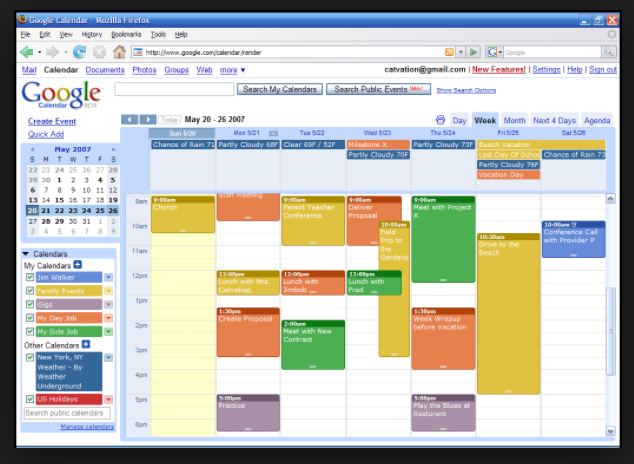
Adding calendars from your Google account is easy. Simply click on the '+' button next to 'Other calendars' in the left-hand menu, then select 'Create new calendar'. You can then enter the name and description of the new calendar, and choose the time zone and other settings. You can also add calendars from other Google accounts, such as a work or school account, by selecting 'Add calendar' and then 'From directory'. This allows you to add calendars from other users in your organization.
In addition to adding calendars from Google accounts, you can also add calendars from other sources. This includes calendars from Microsoft Exchange, Apple iCloud, and other calendar services. To add a calendar from another source, click on the '+' button next to 'Other calendars', then select 'Add calendar' and 'From URL'. You can then enter the URL of the calendar you want to add, and Google Calendar will import the schedule. With these steps, you can easily add more calendars to Google Calendar and stay organized with multiple schedules in one place.