

How To Create Calendar In Excel For 2023
Setting Up Your Excel Calendar
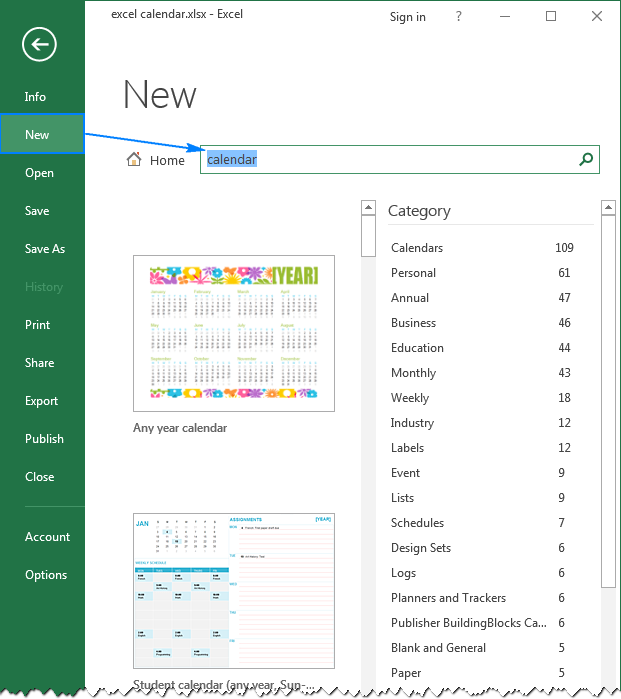
Creating a calendar in Excel for 2023 can be a great way to stay organized and focused throughout the year. With a few simple steps, you can create a customizable calendar that meets your needs and helps you plan ahead. To get started, open a new Excel spreadsheet and give it a title, such as '2023 Calendar'. Next, set up the basic structure of your calendar by creating columns for the days of the week and rows for the weeks of the year.
To make your calendar more functional, you'll want to add dates and formulas to calculate the days of the week. You can use the DATE function in Excel to generate the dates for each day of the year. Simply enter the formula =DATE(2023,1,1) in the first cell of your calendar, and then copy it down to fill in the rest of the dates. You can also use formulas to calculate the day of the week for each date, using the WEEKDAY function.
Customizing Your Excel Calendar
Once you have the basic structure and dates set up, you can start customizing your calendar to fit your needs. You can add holidays, appointments, and other important events to each day of the year. You can also use different colors and formatting to make your calendar more visually appealing. To add holidays, simply type in the name of the holiday in the corresponding cell, and use a different color to highlight it. You can also use Excel's built-in formatting tools to add borders, shading, and other visual effects to your calendar.
With your calendar set up and customized, you can now use it to plan and organize your time for 2023. You can print out your calendar and hang it on the wall, or save it to your computer and refer to it digitally. You can also share your calendar with others, such as colleagues or family members, to help you stay coordinated and on track. By following these steps and customizing your calendar to fit your needs, you can create a powerful tool to help you achieve your goals and stay organized throughout the year.