
How To Print Google Calendar: A Step-by-Step Guide


Printing a Google Calendar: Why and How
In today's digital age, it's easy to get caught up in the convenience of online calendars. However, there are still times when a physical copy of your schedule can come in handy. Whether you're planning a meeting, creating a to-do list, or simply want a backup of your appointments, printing your Google Calendar can be a useful tool. In this article, we'll walk you through the simple steps to print your Google Calendar.
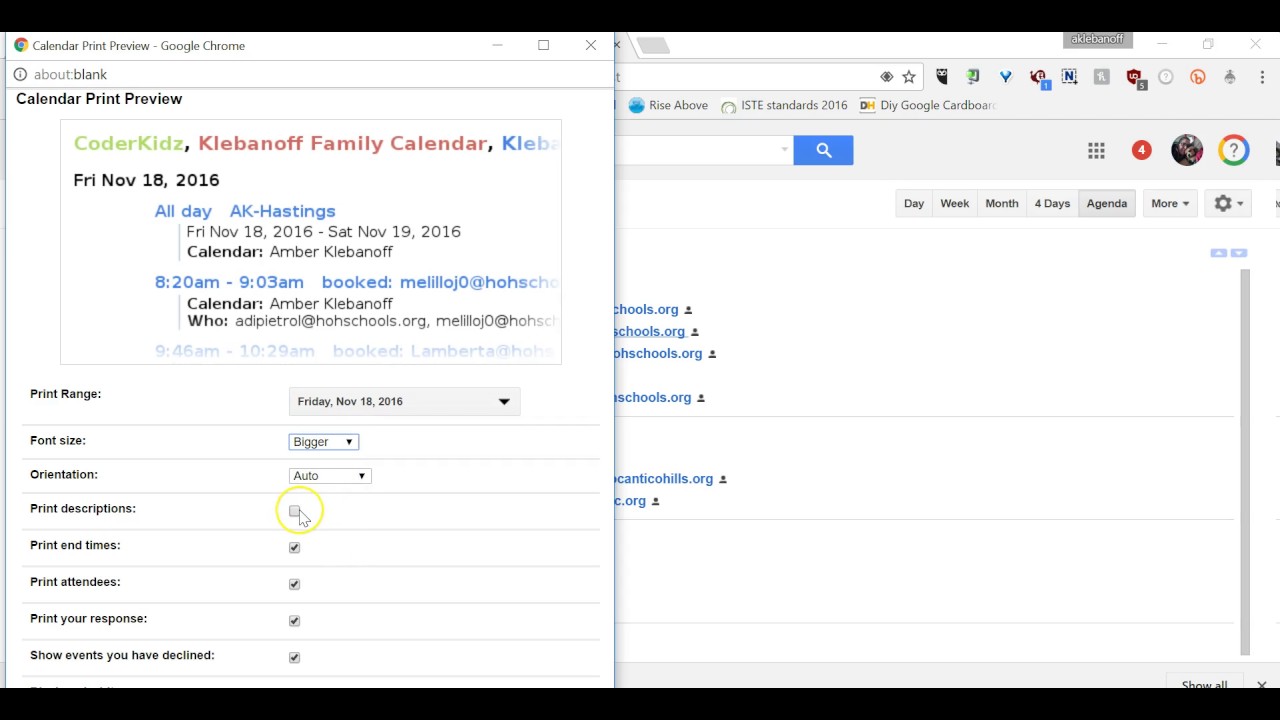
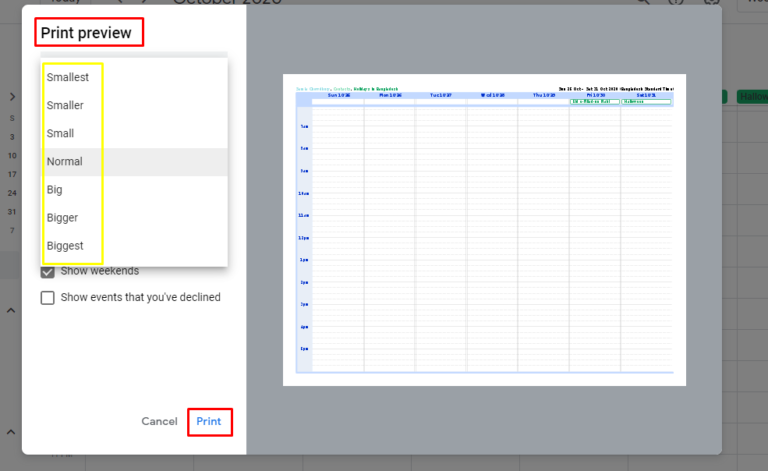
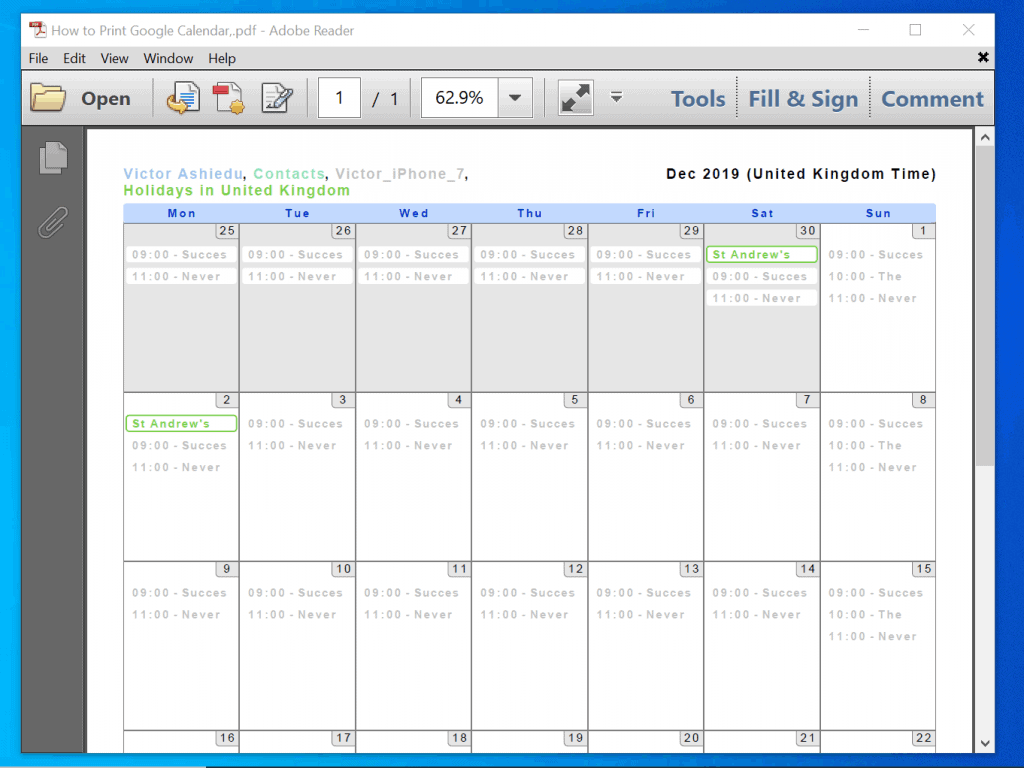
To print your Google Calendar, start by logging into your Google account and navigating to the Google Calendar page. From there, click on the settings icon (represented by a gear) and select 'Print' from the drop-down menu. You'll then be given the option to choose which calendar you want to print, as well as the date range and layout. You can choose to print a daily, weekly, or monthly view, depending on your needs.
Tips and Variations for Printing Your Google Calendar
Printing a Google Calendar can be useful for a variety of reasons. For one, it provides a tangible backup of your schedule, which can be helpful in case of a power outage or internet outage. It can also be a useful tool for planning and organization, allowing you to visualize your schedule and make notes by hand. Additionally, printing your Google Calendar can be a great way to share your schedule with others, such as family members or colleagues, who may not have access to your digital calendar.
Once you've printed your Google Calendar, there are a few things you can do to make the most of it. For one, you can use a highlighter or colored pen to highlight important appointments or deadlines. You can also use stickers or stamps to add visual interest and make your schedule more engaging. Additionally, you can consider printing your calendar on a regular basis, such as weekly or monthly, to help you stay organized and on track. By following these simple steps and tips, you can get the most out of printing your Google Calendar.